PhotoCraft tutorial: your first image, start to finish
Open a picture, make a small edit, and take the result with you. This is the simplest way to get comfortable with PhotoCraft in your browser.
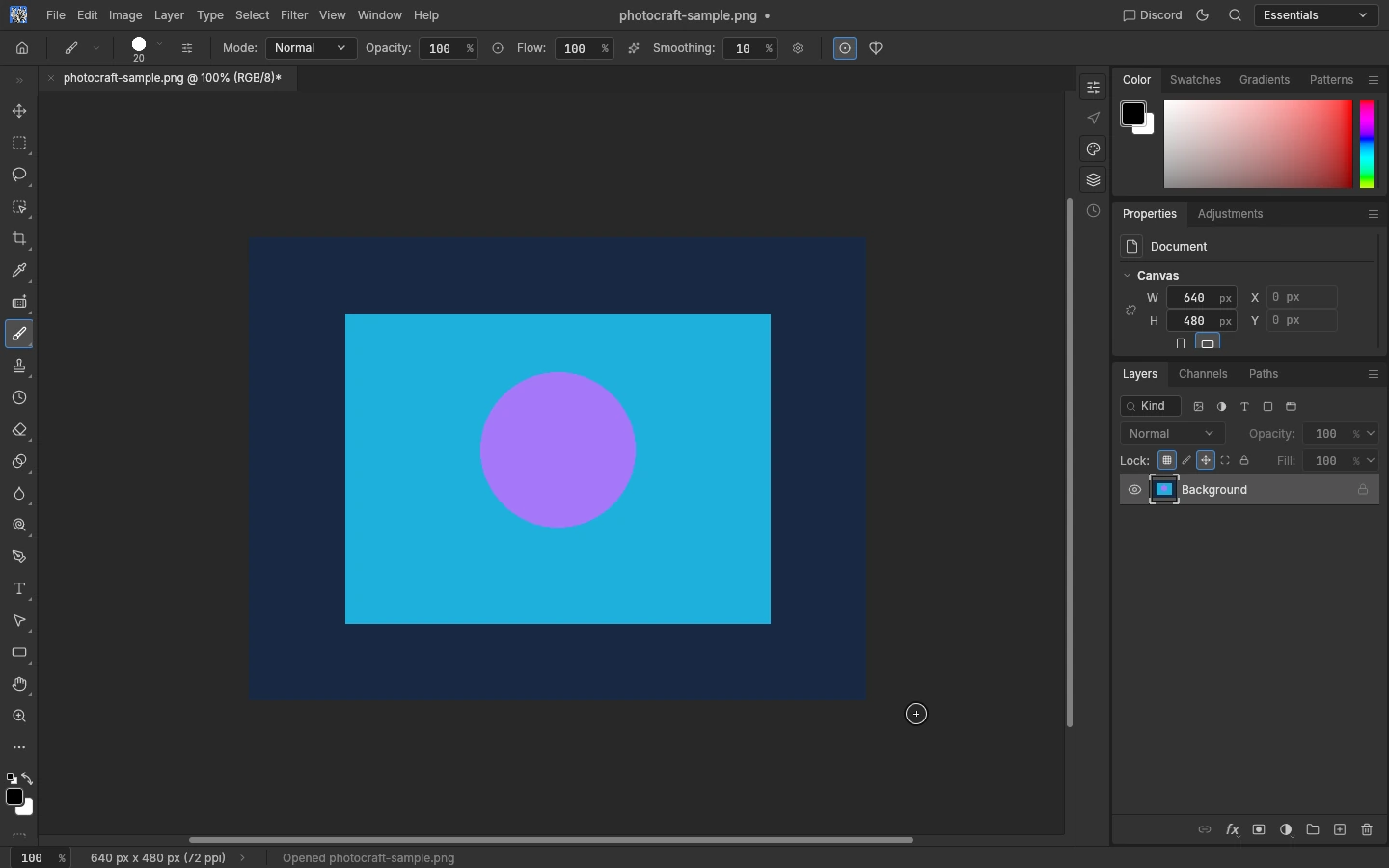
Open your first image
The editor runs directly on the homepage. You do not need to install a desktop app or create an account. Wait until the loading message disappears and the PhotoCraft workspace appears.
- Choose Open on the editor's start screen. If a document is already open, choose File → Open instead.
- Select a small PNG or JPG from your device. For a first attempt, use a copy rather than your only original.
- Wait for the image to appear on the canvas. The document tab shows the file name; the status bar shows its pixel dimensions.
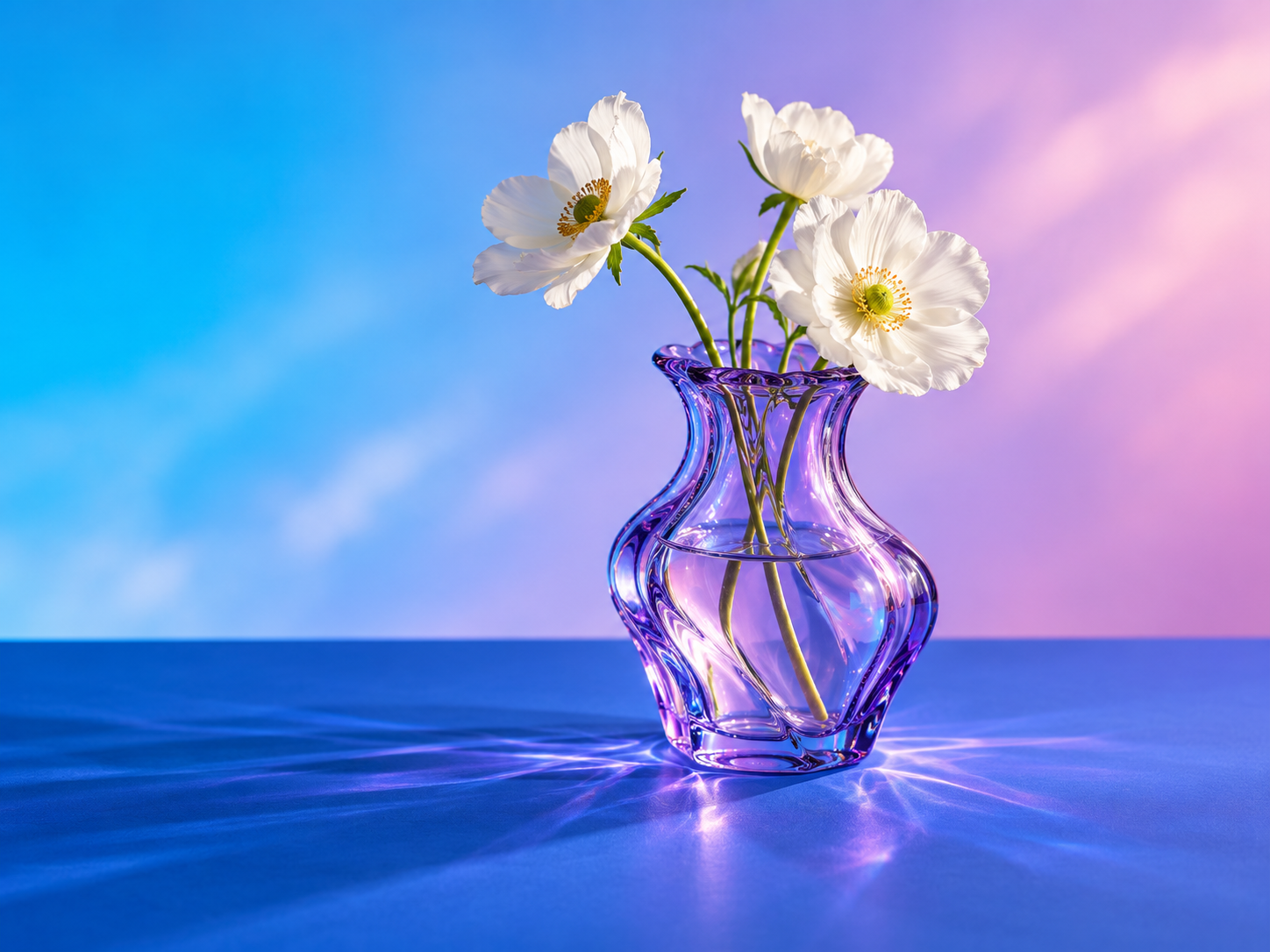
Need a picture to try? Download our original practice image. It is a generated illustration for editing practice, not an example of an automatic PhotoCraft feature.
Your file is processed in the browser. Opening it here does not upload it to a document server. Saving later creates a browser download; it does not overwrite the original file you selected.
Find the tools without learning every menu
For a first edit, concentrate on four areas:
- Top menus: File handles opening and saving; Image includes whole-image size changes. Edit includes Undo.
- Left toolbar: pick a tool before using the canvas. The selected tool determines what a click or drag does.
- Canvas: the image you are working on. Zooming the view does not change its pixel dimensions.
- Layers panel: the pieces that make up the document. A simple opened PNG starts as a single image layer; a PSD may contain several.
Use the Full screen button above the editor when you want more space. It expands the same workspace, so your current document stays open. Choose Exit full screen to return to the page. A larger desktop display is the most comfortable place to work with the full toolbar and panels.
Make one small edit—and undo it
- Select the Brush tool in the left toolbar.
- Click or drag over a small part of your practice image. You should see a mark on the canvas.
- Choose Edit → Undo to remove that change.
This quick test makes two things clear: the image is editable, and a canvas click is not just navigation. If you click outside a menu while a painting tool is selected, you may paint a mark. Use Undo if that happens.
For a useful first result rather than a brush test, resize the image through Image → Image Size. That changes the actual pixel dimensions, not just how large the picture looks in the workspace.
Download the result before you leave
Choose File → Export → Quick Export as PNG. The browser downloads a PNG to its usual download location. Open your browser's Downloads list if you do not see it immediately.
A PNG is a finished picture, not an editable layered document. If you want to continue working on supported layers, save a PSD separately. The save and export guide explains the two paths.
The Web edition has no autosave or crash recovery. Download before refreshing, closing the tab, or navigating away. Keep the untouched original.
If the editor does not load
The first visit needs to download a WebAssembly engine of about 24 MB before the workspace can start. A slower connection can make that first load noticeably longer than the guide page itself.
If it stays on the loading screen:
- Give the initial download time to finish. The loading panel offers a retry if startup is taking longer than expected.
- Use a recent desktop browser with browser graphics acceleration available.
- Choose Try the WebGL renderer in the loading panel if the default renderer cannot start. The browser must still support a working graphics renderer.
- If a content blocker is interfering, check whether it has blocked this site's local script or WebAssembly file. No ad script is required to use the editor.
Do not reload an already-running editor to fix a minor issue without saving first: a reload discards the current in-memory document.
Version and source
This guide applies to the self-hosted PhotoCraft Web v0.7.0 build, which is early alpha. We checked the basic PNG open/edit/download workflow; that is not a promise that every Photoshop tool or document behaves identically.
Official references: Web build notes, PhotoCraft project.